How to Connect Google Voice to Your AI Receptionist
August 15, 2026
Google Voice is a popular way to run a business number without a second phone, and it pairs well with AI Receptionist: keep giving out your Google Voice number, and let your receptionist answer everything behind it. The setup takes about ten minutes and involves two things Google Voice does differently from a normal carrier. This guide walks through both.
Why Google Voice Takes Two Extra Steps
Most carriers forward calls with a dial code like *72, and our Call Forwarding Guide covers those. Google Voice works differently. It forwards calls to "linked numbers," and it normally verifies a linked number by texting it a code. Business and VoIP numbers, including your AI Receptionist number, can't receive that text. Google Voice also screens forwarded calls by asking the receiving end to "press 1" before connecting the caller.
Google Voice can read the verification code over a phone call instead of texting it, and your AI Receptionist can press 1 for you. Both steps below take a few minutes, and you can do them in either order.
Step 1: Link Your AI Receptionist Number in Google Voice
- Go to voice.google.com, click the gear icon, then open the Account tab and find Linked numbers.
- Click "New linked number" and enter your AI Receptionist phone number.
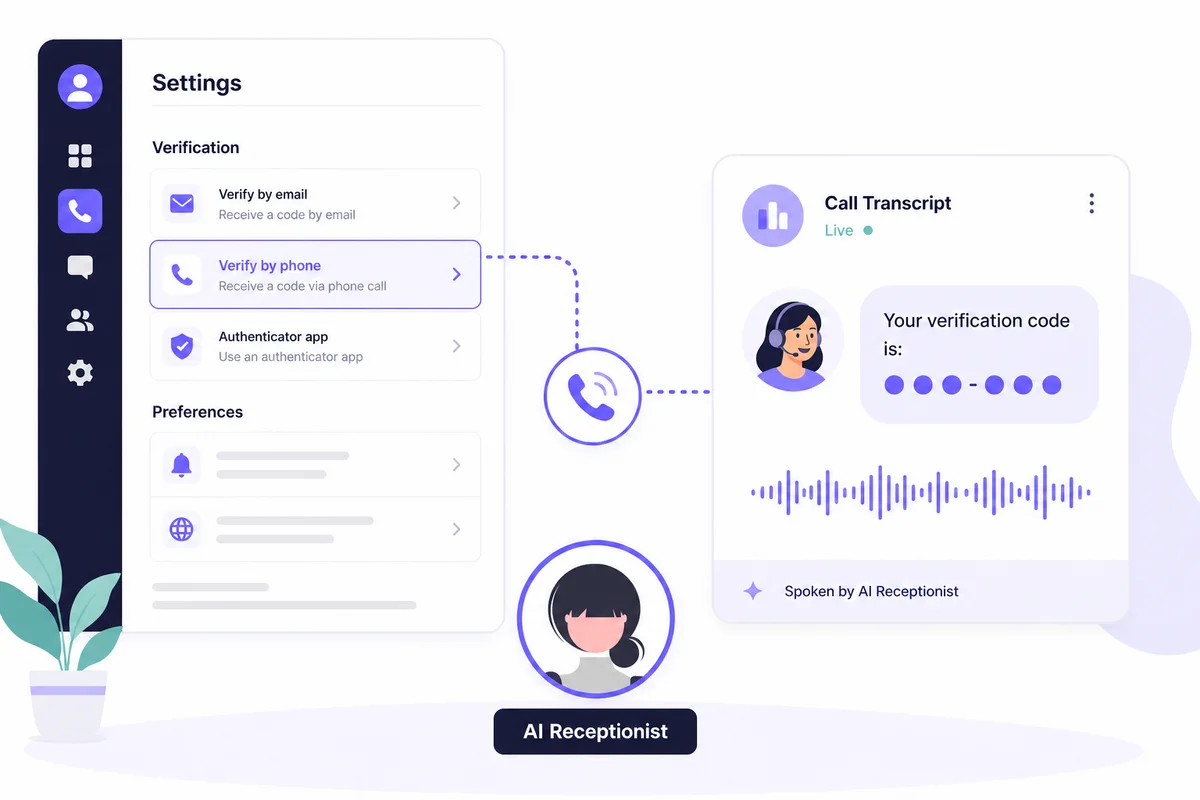
- Instead of "Send code," choose "Verify by phone." Google Voice then calls your AI Receptionist and reads the code aloud.
- Open the activity page in your AI Receptionist dashboard and find the call that came in from Google. The code appears right in the transcript. Watch for digits transcribed as words, so "four two..." means 42. If the transcript is unclear, download the call audio and listen to it.
- Type the code into the Google Voice screen to finish linking.
Once the number is linked, check the gear icon under Calls and make sure incoming calls are set to ring your new linked number.
One note on timing. If you're still on a trial number and haven't picked your permanent AI Receptionist number yet, you can either choose your permanent number first, or set this up now and repeat these linking steps once you've picked it.
Step 2: Turn On Pre-Call Digit Press
When Google Voice forwards a call, it asks the receiving end to press 1 to accept. Your AI Receptionist handles that with a setting called Pre-Call Digit Press, which presses the digit before the conversation starts so your caller connects straight to the AI. You configure it by voice through Boss Mode:
- In your dashboard, make sure Boss Mode is enabled and your own phone number is entered.
- Call your AI Receptionist number from that registered phone.
- Say "boss mode" and wait for the chime that confirms you're in.
- Tell your AI to set "Pre-Call Digit Press for the number 1."
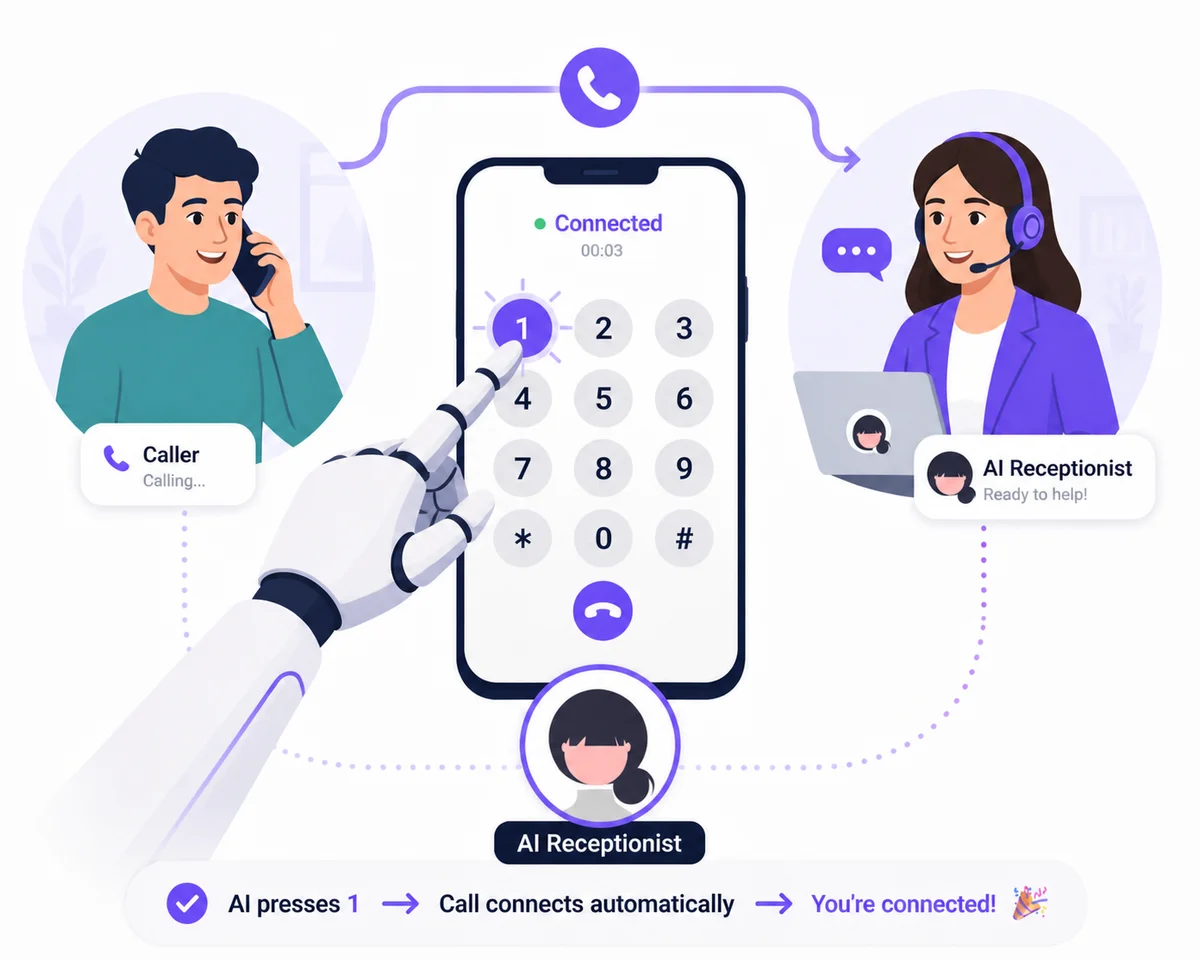
That's the whole configuration. From then on, your receptionist accepts every forwarded call automatically, and your caller never hears the prompt.
Recommended: Show the Real Caller's Number
By default, Google Voice stamps its own number on forwarded calls as the caller ID. Your dashboard would then show every call as coming from your Google Voice number, which weakens caller profiles, spam filtering, and callbacks. Turn it off:
At voice.google.com, click the gear icon, open Calls, and switch off "Show my Google Voice number as caller ID when forwarding calls." The same toggle exists in the Android and iOS apps under Menu > Settings. The change usually applies from the next call, and your transcripts and caller history will show each caller's real number.
Test It
Call your Google Voice number from a different phone. You should hear your AI Receptionist answer with its usual greeting, and a minute later the call shows up in your dashboard with a transcript and the caller's real number. If the call doesn't connect, confirm the linked number is verified and toggled on for incoming calls, and that the Pre-Call Digit Press is set.
That's it - your Google Voice line now has a receptionist answering 24/7. If you hit a snag anywhere in the setup, reach out and we'll walk through it with you.