
How to Connect Google Calendar to Your AI Receptionist
You connect Google Calendar with one Google sign-in on the My Calendar page of your dashboard. From then on your AI receptionist checks your free times during a call and books the appointment into your calendar before the caller hangs up.
The Google Calendar integration is included on every plan, from $14 a month, and in the 7-day free trial, which needs no credit card. You need an AI Receptionist account and a Google account with at least one calendar.
Step 1: Open My Calendar
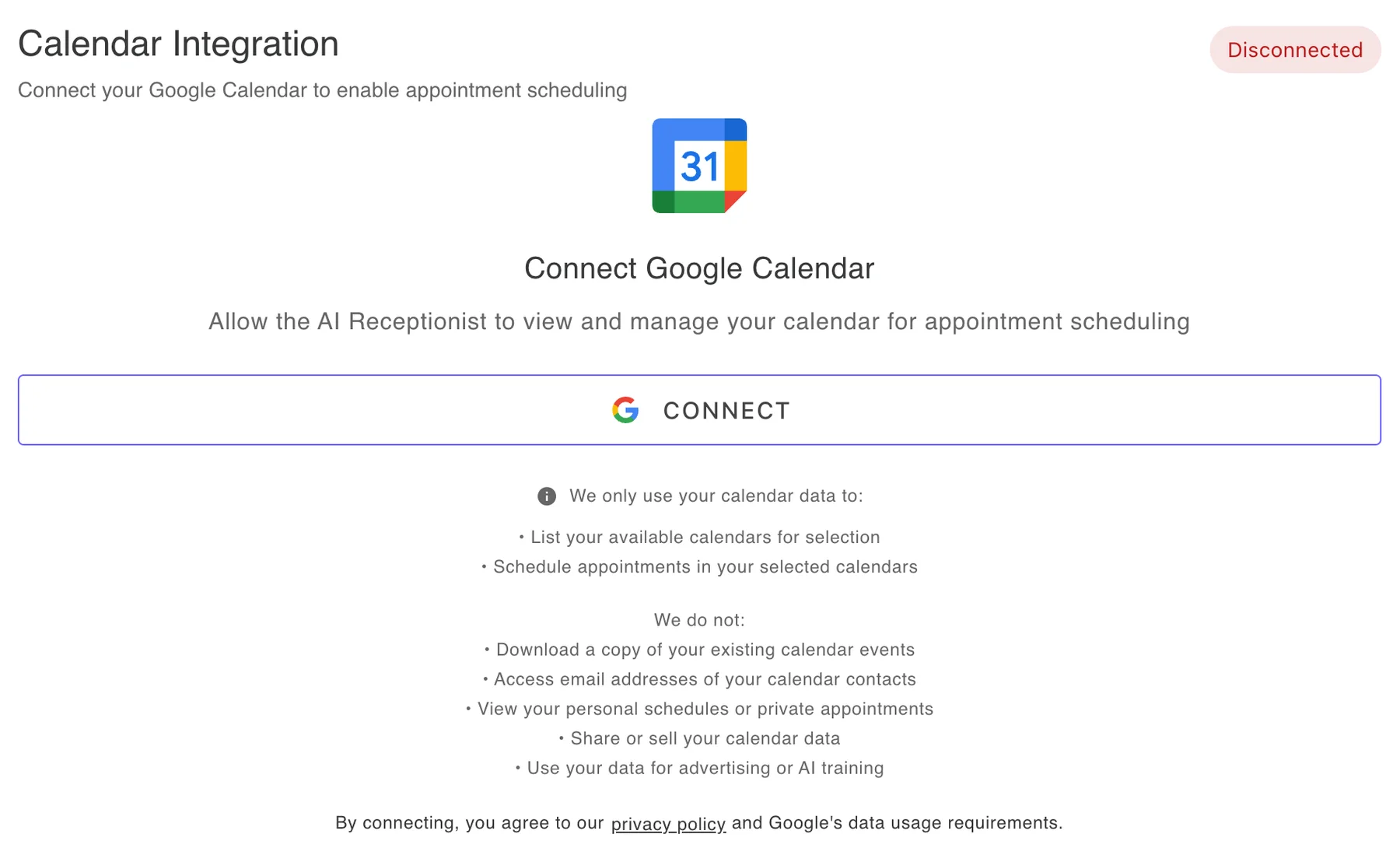
Sign in to your dashboard and choose My Calendar in the menu. The Calendar Integration card shows Disconnected until a Google account is connected.
Step 2: Click Connect and Sign In with Google
Click Connect. Google opens a sign-in window, where you pick the Google account that holds your business calendar. Google then lists two calendar permissions: one to see your calendars and one to create and change events. Tick both, because the AI needs the first to find free times and the second to book.
Step 3: Choose Your Calendars
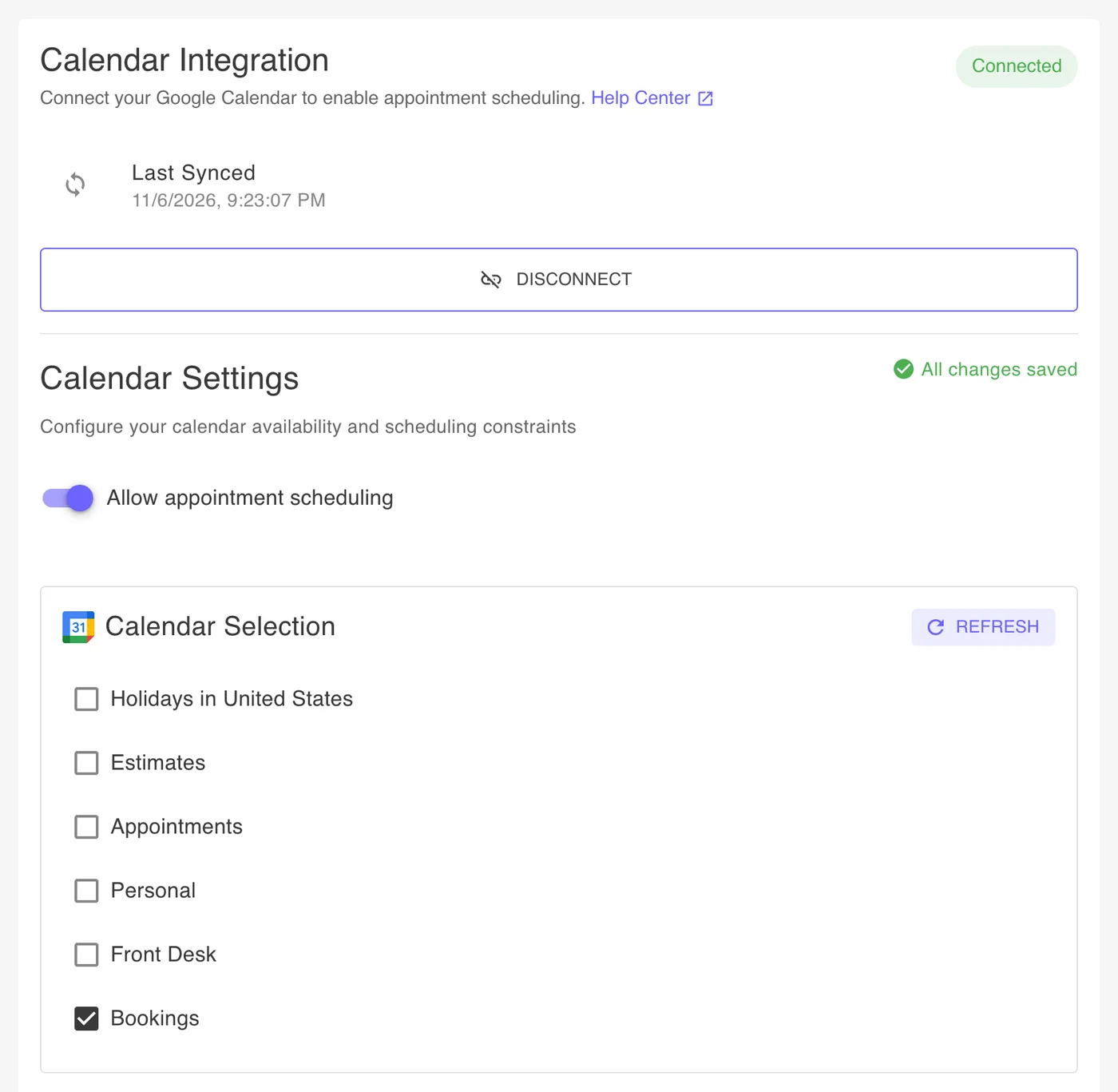
The card now shows Connected and lists every calendar in your Google account under Calendar Selection. Tick each calendar the AI may read and book into. It ignores the rest. At least one calendar has to be ticked. If a calendar you created recently is missing from the list, click Refresh.
Ticking one calendar is the safest setup. When the AI books into a calendar, it checks that calendar for conflicts and not the other ticked ones, so an appointment in your personal calendar does not block a time in your booking calendar. If you tick more than one, put each block-out on every calendar the AI may book into.
Step 4: Set Your Booking Rules
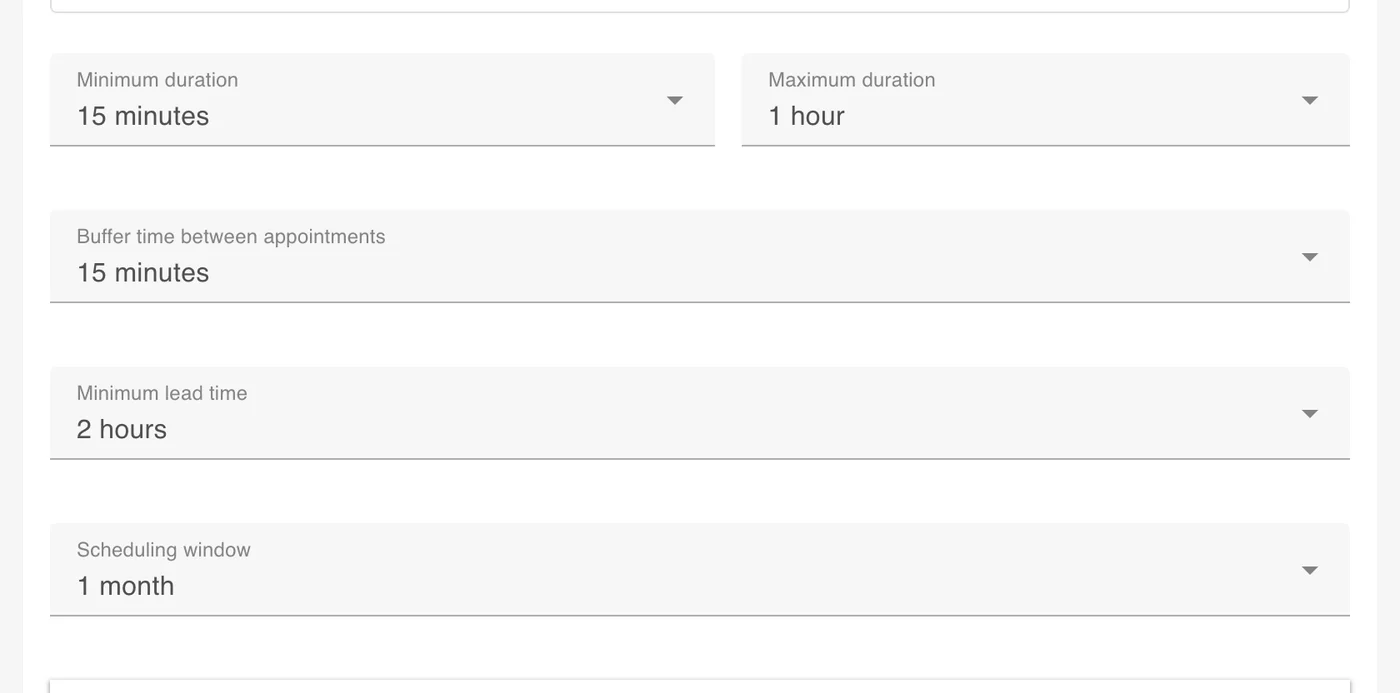
Check that Allow appointment scheduling is switched on, then set the five rules below it. Each change saves by itself, and the card shows All changes saved when it has.
- Minimum duration: 15, 30, 45 or 60 minutes
- Maximum duration: from 30 minutes to 2 hours
- Buffer time between appointments: none, or from 5 minutes to 2 hours
- Minimum lead time: 1, 2, 4, 8 or 24 hours, so a caller cannot book the next ten minutes
- Scheduling window: how far ahead callers can book, from 1 week to 3 months
Step 5: Set Your Working Hours
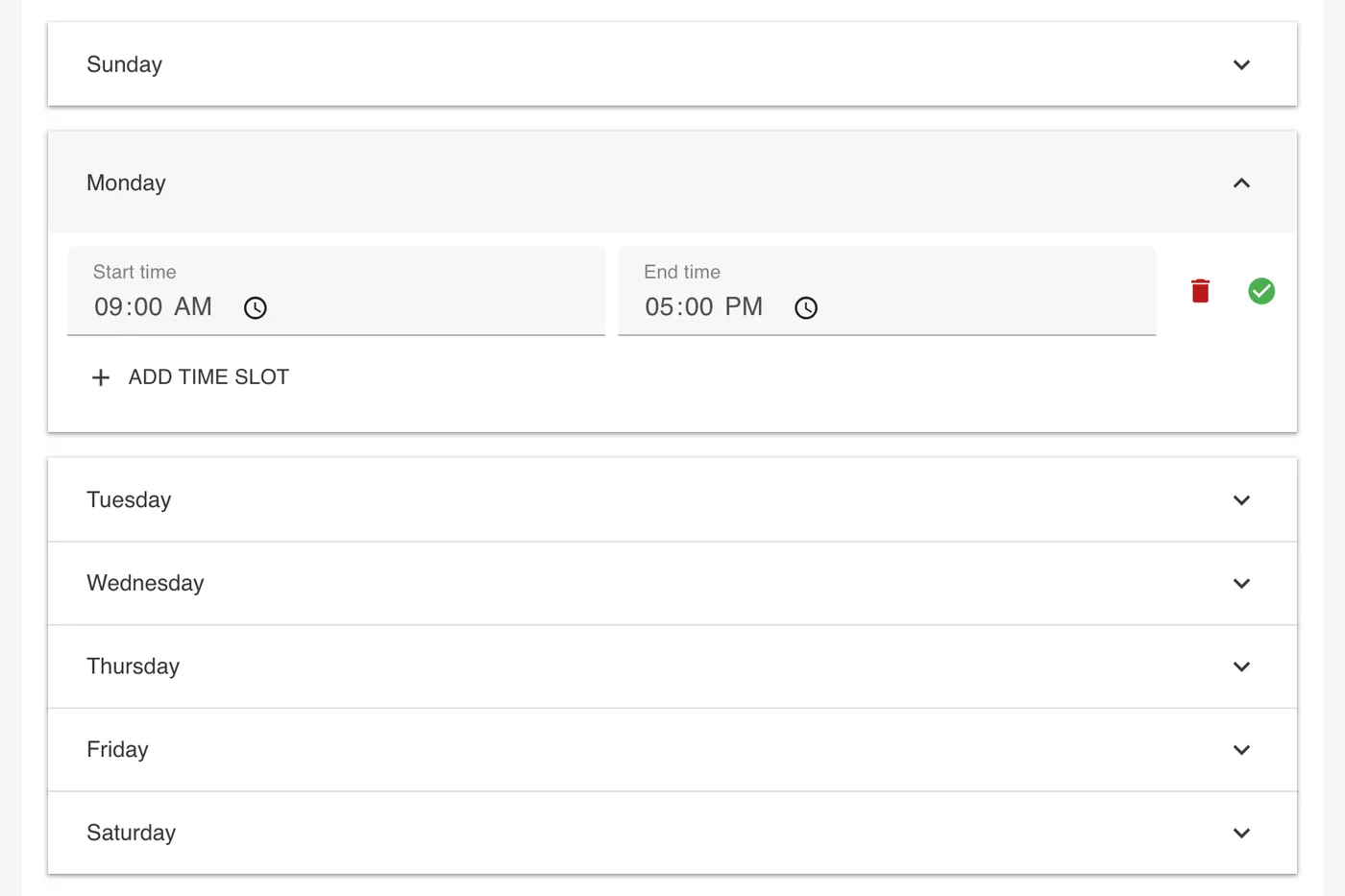
Open each weekday and click Add Time Slot for the hours you take appointments. A day can have more than one slot, for example 9:00 to 12:00 and 1:00 to 5:00 around a lunch break. A day with no slot gets no bookings. A green check next to a slot means it is saved.
Step 6: Book a Test Appointment
Call your receptionist's number and ask for an appointment. The AI offers times that are free under your rules and creates the event during the call. Open Google Calendar and you will find it there, with the appointment type and your name in the title, your phone number and a short note about the call. Call again from the same phone to move or cancel it.
What the AI Receptionist Does with Your Calendar
The connection uses Google's own sign-in, so we never see your Google password. We use your calendar data for two things: listing your calendars so you can choose between them, and scheduling appointments in the calendars you chose.
We do not download a copy of your existing events, read the email addresses of your calendar contacts, share or sell your calendar data, or use it for advertising or AI training.
You can remove the connection at any time with the Disconnect button on the My Calendar page. Our privacy policy has the details.
If Something Does Not Work
The AI does not offer to book
Check three things on the My Calendar page: the card says Connected, Allow appointment scheduling is switched on, and at least one calendar is ticked. Then check that the weekday the caller asked for has a time slot.
No calendars are listed
Click Refresh. If the list stays empty, disconnect and connect again, and tick both calendar permissions on the Google screen.
The card says Reconnect Google Calendar
The AI receptionist can no longer reach your calendar. Click Connect again, sign in with the Google account your calendar is in and tick both calendar permissions.
The offered times are off by an hour or more
Appointments are booked in the time zone of your Google Calendar. Open the settings in Google Calendar and check that its time zone is the one your business works in.
A time slot shows a red mark
The slot is not saved, and the line under it says why. Correct the start or end time and the mark turns into a green check. The Help Center covers the rest of the My Calendar page, and the integrations page lists the other apps you can connect.
Frequently Asked Questions
Which Google permissions does the connection ask for?
It asks for two. The first lets the AI receptionist see your calendars, so it can find free times. The second lets it create and change events, so it can book, move and cancel appointments. Google shows them as two checkboxes, and both have to be ticked.
Which plans include the Google Calendar integration?
Every plan, including Essential at $14 a month, and the 7-day free trial, which needs no credit card.
Learn more: Pricing, Free trial
Which time zone are appointments booked in?
The time zone of your Google Calendar. If the times the AI offers look shifted by an hour or more, check the time zone in your Google Calendar settings.
Can I pick which calendars the AI uses?
Yes. After you connect, My Calendar lists the calendars in your Google account with a checkbox each. The AI reads and books into the ones you tick and ignores the rest. Each calendar is checked for conflicts by itself, so an event in one ticked calendar does not block that time in another. One ticked calendar is the simplest setup.
The page says Reconnect Google Calendar. What do I do?
The AI receptionist can no longer reach your calendar. Click Connect again, sign in with the Google account your calendar is in and tick both calendar permissions on the Google screen.
Does it connect to Outlook, Calendly or Apple Calendar?
No, the AI books into Google Calendar only. Callers on Outlook or an iPhone can still save their appointment, because the AI can text or email them a calendar link.
Learn more: Calendar booking
How do I stop the AI from booking appointments?
Switch off Allow appointment scheduling on the My Calendar page to pause booking and keep the connection. Click Disconnect to remove the connection to your Google account.
Connect Your Google Calendar Today
Start your free 7-day trial. No credit card required.
Start Free Trial