

How to Connect Zapier to Your AI Receptionist
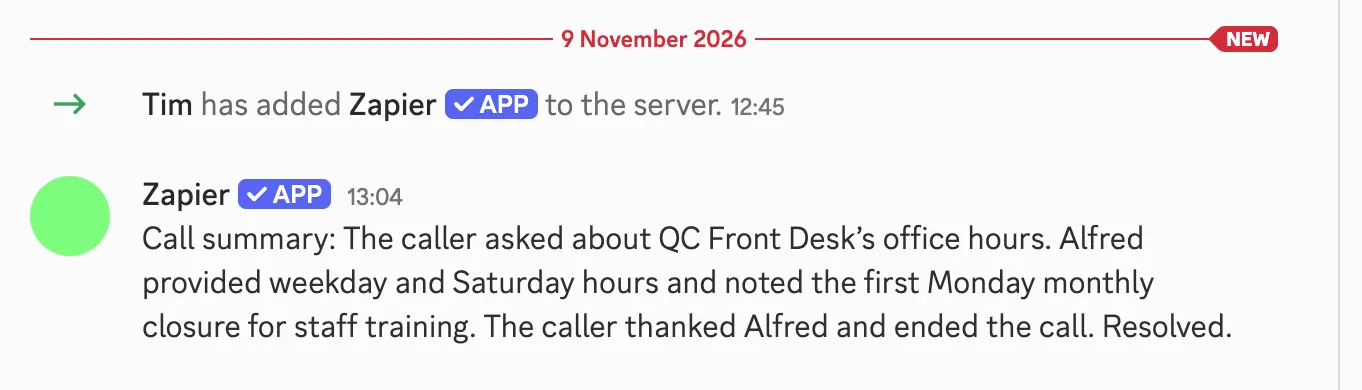
Zapier connects your AI receptionist to the other apps your business runs on, such as Google Sheets, HubSpot, Salesforce, Pipedrive, Slack, Microsoft Teams, Trello or Airtable. After each call, an AI agent called the Post-Call Agent reads the call and does what you asked: it adds the caller to your CRM, logs the call in a spreadsheet or posts the summary to your team's channel.
The Zapier integration is included from the Starter plan at $39 a month. You need a Zapier account, and you do not have to build any Zaps. Zapier runs after the call ends, not while the caller is on the line.
Step 1: Create a Zapier MCP Server
Sign in at zapier.com, click MCP servers in the left navigation, then Create. Open the new server's Settings tab and keep Agentic mode on, which is the default and the mode Zapier recommends. On the same tab, under API token, click Generate token and copy it. Zapier shows the token once.
Step 2: Connect It on the Connected Apps Page
In your AI Receptionist dashboard, open Connected Apps. Under Connect an app, enter https://mcp.zapier.com/api/v1/connect as the Server address and paste the token as the Access token. Zapier needs no name. Click Connect. The page lists Zapier's tools and switches none of them on.
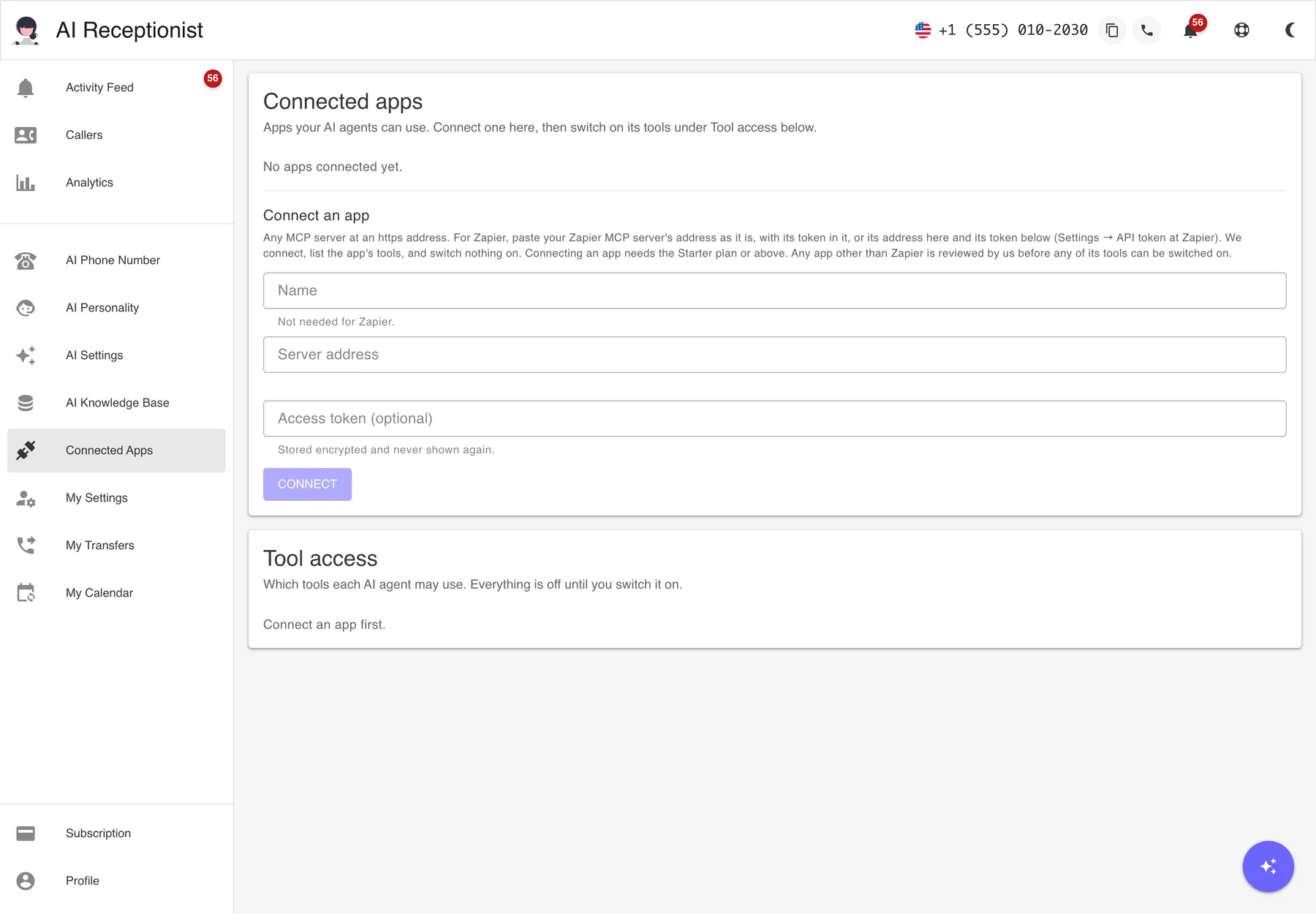
Step 3: Read and Accept the Risk List
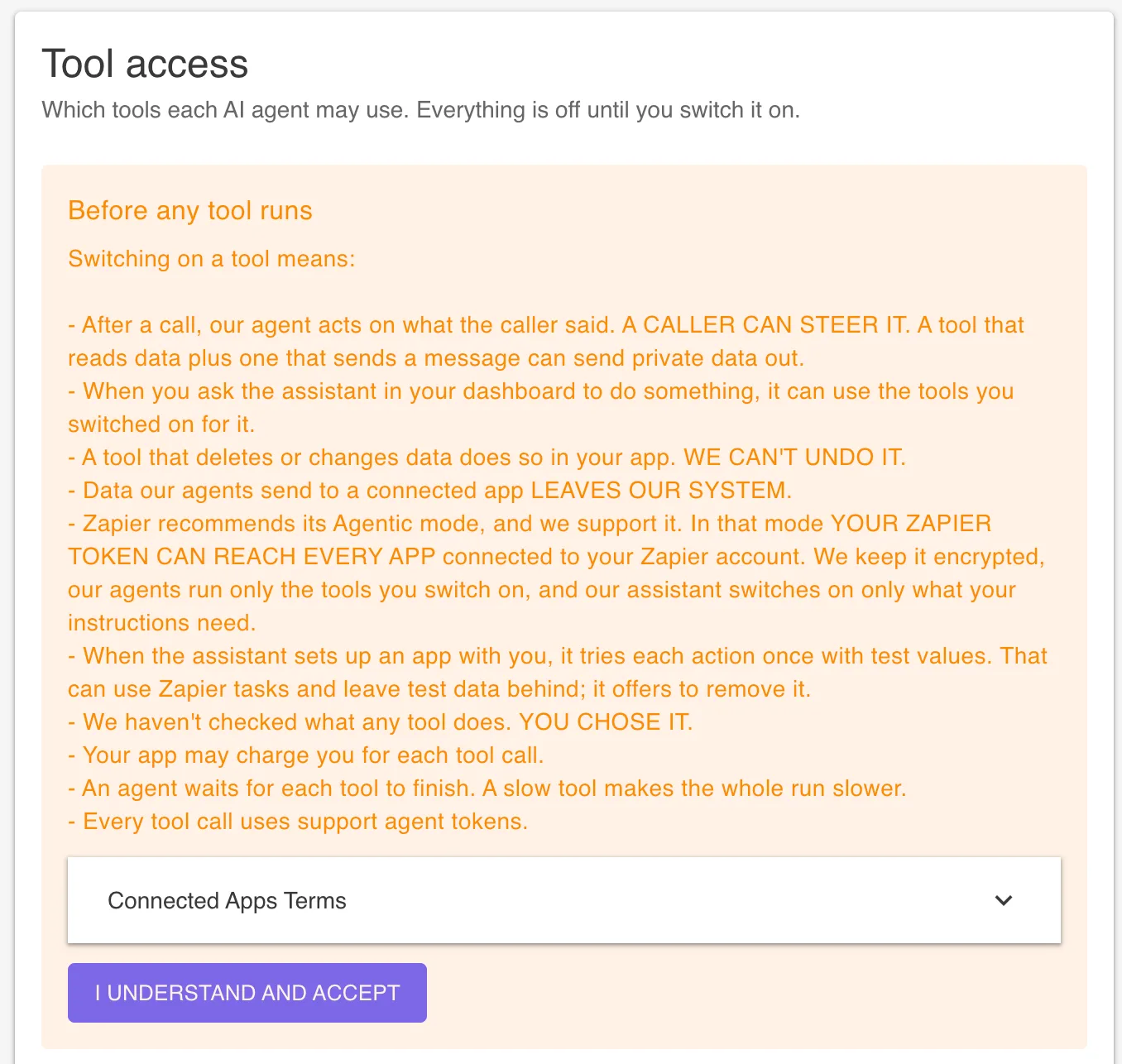
Before any tool runs, the page shows a short list of the risks of letting an AI agent act in your apps. Read it and click I understand and accept. You do this once, and nothing runs in your apps before it.
Step 4: Tell the Assistant What Should Happen After a Call
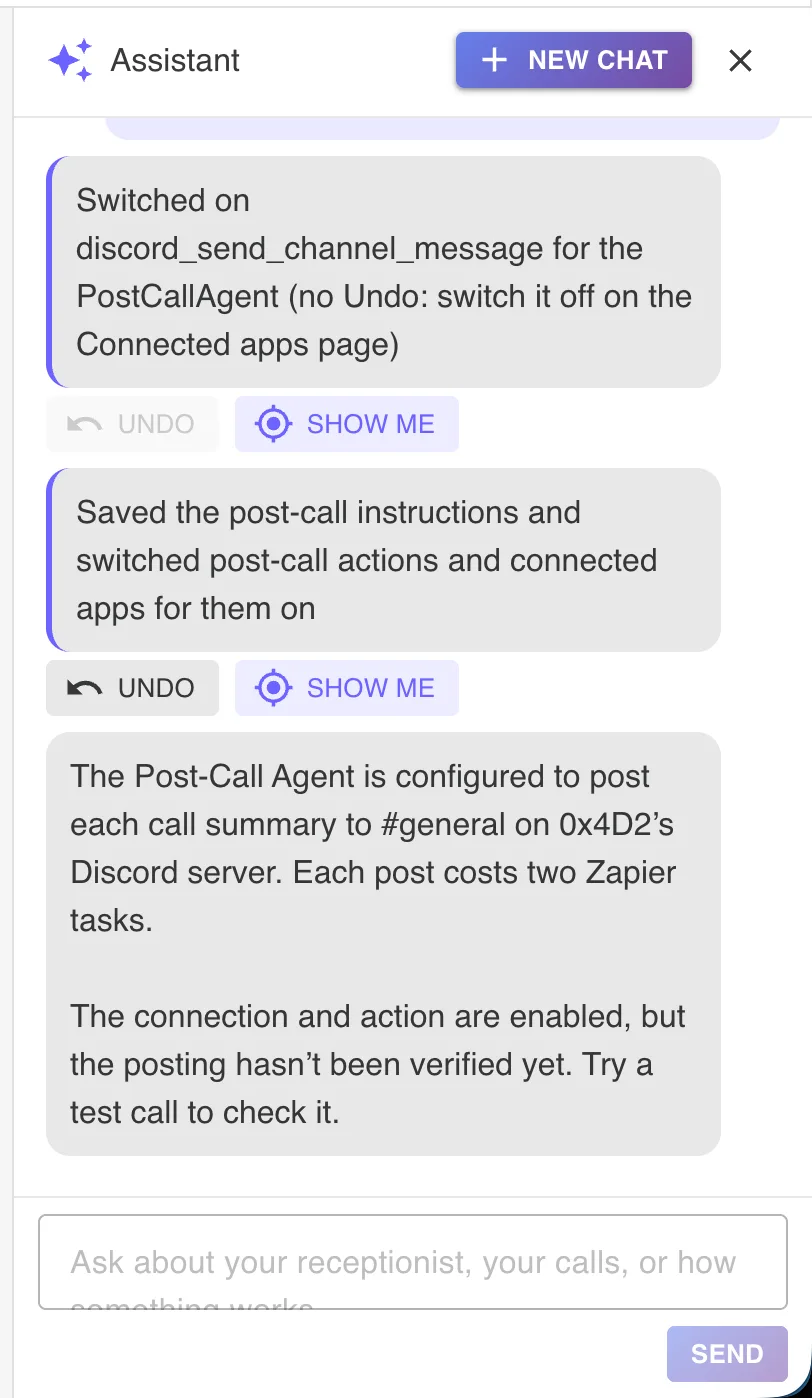
Open the assistant in your dashboard and describe the job in plain language, for example "add every new caller to my Leads sheet" or "post every call summary to our #general channel". The assistant enables the app at Zapier, finds the sheet or channel and its fields, switches on the tools the job needs and saves your post-call instructions. If the app is not connected to your Zapier account yet, it gives you a sign-in link first. It also tells you what each run costs at Zapier.
Step 5: Check Tool Access and Post-Call Actions
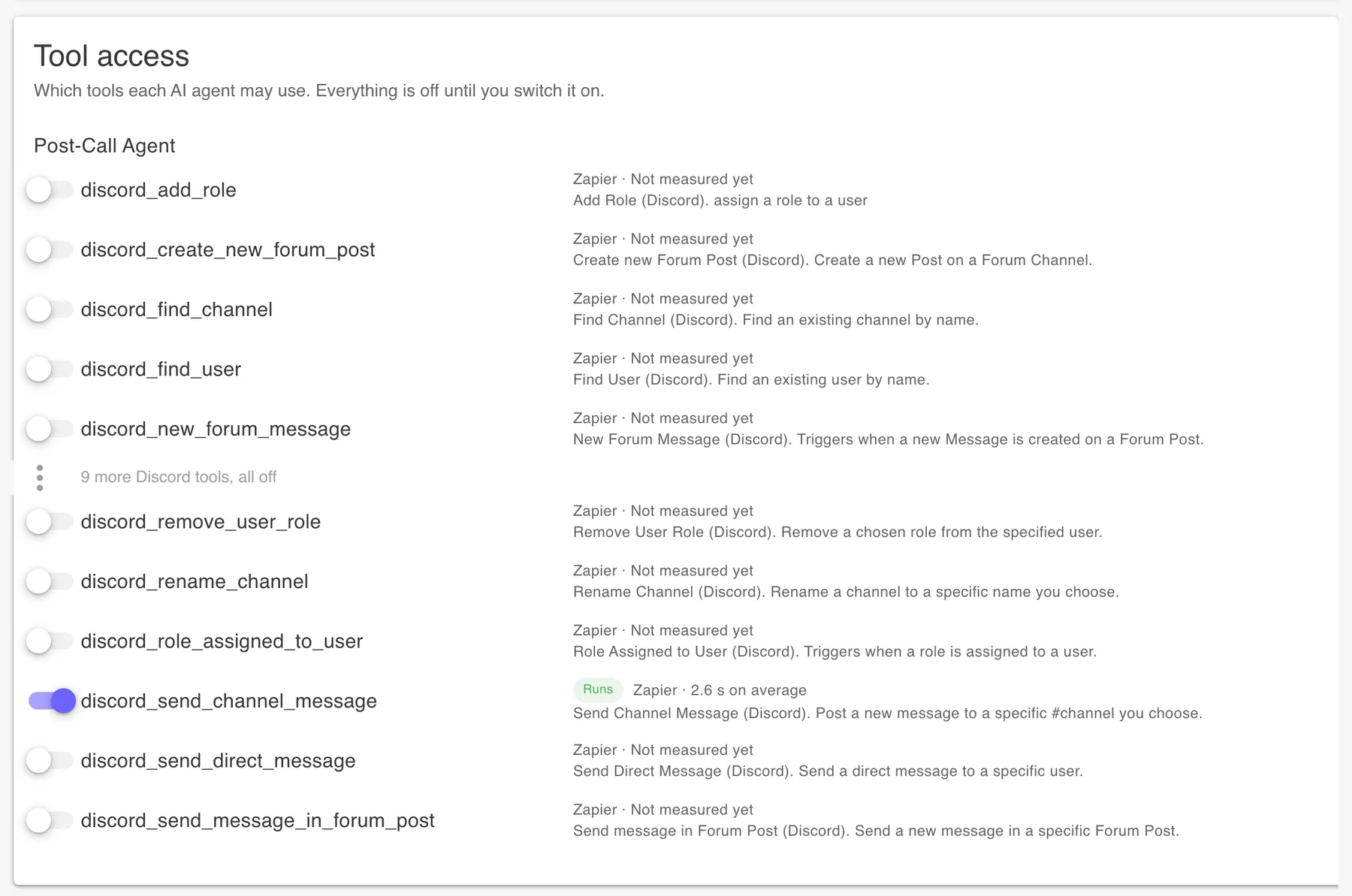
Under Tool access there is one switch per Zapier tool, and the Post-Call Agent can use only the tools that are switched on. Check that the list matches the job and nothing more. Then open AI Settings and check that Allow connected apps is ticked on the Post-Call Actions card.
Step 6: Make a Test Call
Call your receptionist's number and leave a request the job should pick up. A few seconds after you hang up, the row, contact or message appears in your app. In the Activity Feed, open the call and click View details on its Post-Call Agent panel to see every step, every tool it called and what came back.
What It Costs and What It Does Not Do
We charge no extra fee for the Zapier integration. Zapier counts two tasks on your Zapier plan for every action it runs. On our side, each Post-Call Agent run and each assistant request uses support agent tokens from your plan's monthly allotment, which the Subscription page shows.
Zapier is not used during the call. While the caller is on the line, your AI Receptionist answers from your knowledge base and instructions and books appointments into Google Calendar. The Post-Call Agent uses Zapier once the call has ended, and the assistant uses it when you ask for something in your dashboard, such as "find Maria in HubSpot".
One Zapier server can be connected per account. A change or deletion the agent makes in your app cannot be undone by us, so give it only the tools the job needs. The integrations overview explains the safeguards in more detail.
If Something Does Not Work
Nothing happened after a call
Open the call in the Activity Feed and click View details on its Post-Call Agent panel. The usual causes are a tool that is switched off under Tool access, or Allow connected apps not ticked on the Post-Call Actions card. You can also ask the assistant, for example "why wasn't Tuesday's caller added to my sheet?", and it reads the run and offers the fix.
A tool shows Needs attention
The tool was removed or changed at Zapier. Click Check again on the Connected Apps page to list the tools again, then switch the tool back on.
A phone number shows as #ERROR! in Google Sheets
Format the column that holds phone numbers as plain text (Format, Number, Plain text). Google Sheets reads a number that starts with + as a formula.
I pasted my token into the chat
The assistant refuses a token typed into the chat. Generate a new token at Zapier under Settings, API token, and connect again on the Connected Apps page. The Help Center covers the rest of the Connected Apps page.
Frequently Asked Questions
Which plans include the Zapier integration?
Starter ($39 a month), Solopreneur and Business. It is not available on Essential. We charge no extra fee for it.
Learn more: Pricing
Does the AI use Zapier during the call?
No. Zapier is used after the call ends, by the Post-Call Agent, and in your dashboard when you ask the assistant to do something. During the call your AI Receptionist answers from your knowledge base and instructions and books appointments into Google Calendar.
Learn more: Google Calendar integration
Do I have to build Zaps?
No. You create one Zapier MCP server and connect it. The assistant in your dashboard then enables the app at Zapier, finds the sheet, channel or CRM fields, switches on the tools the job needs and writes the post-call instructions.
What does it cost at Zapier?
Zapier counts two tasks on your Zapier plan for every action it runs. On our side, each Post-Call Agent run and each assistant request uses support agent tokens from your plan's monthly allotment, which the Subscription page shows.
Should I use Zapier's Agentic mode or Managed mode?
Zapier recommends Agentic mode, and it is the easier one. The assistant enables apps at Zapier for you and gives you a sign-in link when an app is not connected to your Zapier account yet. In that mode your Zapier token can reach every app connected to your Zapier account, although the Post-Call Agent can still use only the tools you switched on. In Managed mode you add each app and action yourself on the server's Apps tab at Zapier and then click Check again.
Can I connect more than one Zapier server?
One Zapier server can be connected per account. Connecting again replaces the token.
Where is my Zapier token kept?
It is stored encrypted and never shown again. The assistant refuses a token typed into the chat. If you typed one there anyway, generate a new token at Zapier and connect again. Disconnect deletes our copy of the token, and you should revoke it at Zapier too.
Why didn't an action happen after a call?
Open the call in the Activity Feed and click View details on its Post-Call Agent panel. The usual causes are a tool that is switched off under Tool access, a tool that shows Needs attention because it changed at Zapier, or Allow connected apps not ticked on the Post-Call Actions card. You can also ask the assistant why, and it reads the run and offers the fix.
Connect Zapier to Your AI Receptionist
Start your free 7-day trial. No credit card required.
Start Free Trial